Blog / A+ Content
Why A+ Content Gets Rejected: The Real Causes
Amazon's A+ Content validation error is one of the least helpful messages in the entire KDP interface. It names a field that is almost never the problem, gives no line number, and highlights nothing. This guide documents the two causes that actually produce it, both found the hard way on a submission we fixed on August 14, 2026.
The error message, and why it misleads
When a submission fails validation, Amazon returns some version of this:
Your content contains errors and cannot be submitted. Please double-check the image keywords field of uploaded images.
The message points at the image keywords field. In our case every image keyword field was filled, every alt text was filled, and none of them were the cause. We spent close to an hour rewriting keywords that were already valid.
The actual cause was a single em dash. One — character in the headline of the first module. Replacing it with a plain hyphen made the submission go through immediately, with no other change.
Cause 1: non-ASCII characters in text fields
A+ Content text fields are filtered more aggressively than the rest of KDP. Accented letters pass without any trouble — we submit in French, and every accent went through. What does not pass is typographic punctuation.
The characters to avoid inside A+ text fields:
| Character | Name | Use instead |
|---|---|---|
| — | Em dash | Hyphen - |
| – | En dash | Hyphen - |
| ’ | Curly apostrophe | Straight apostrophe ' |
| « » | Guillemets | Straight quotes " |
| · | Middle dot | Hyphen or comma |
| × | Multiplication sign | The letter x |
| … | Ellipsis | Three periods |
The trap here is the source of your text. If you draft your copy in a word processor, in Google Docs, or in a chat interface, straight hyphens and straight apostrophes get silently converted to their typographic equivalents before you ever paste them into Amazon. The character you typed is not the character you submitted.
This restriction applies to fields only. Typographic punctuation is still perfectly legal inside the images themselves, because Amazon does not parse them as text. Em dashes in your headline graphic are fine; em dashes in the headline field are not.
Cause 2: images at the wrong dimensions
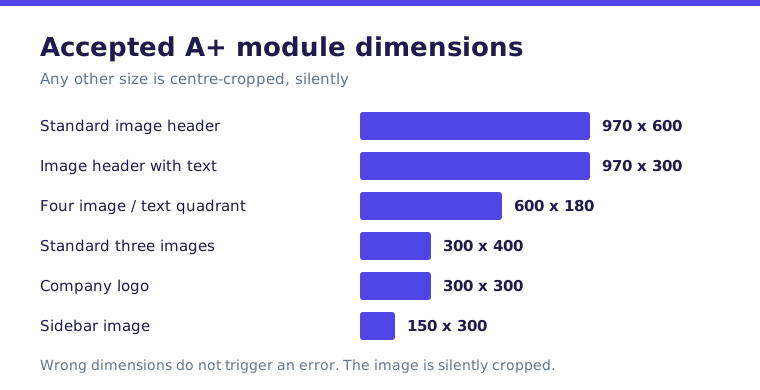
Every A+ module has one exact expected image size. Supply a different one and Amazon does not reject the upload — it accepts the file and center-crops it to fit. If your image has text baked into it, that text gets cut off, and you only discover it in the preview.
We hit this directly: three feature images were produced at 300×400 for a module that expects 300×300. Amazon cropped 100 pixels of height out of the middle of each one and truncated the body copy on all three.
| Module | Image size |
|---|---|
| Standard Image Header with Text | 970 × 600 |
| Standard Three Images & Text | 300 × 300 |
| Standard Single Image & Highlights | 300 × 300 |
| Standard Single Left / Right Image | 300 × 300 |
| Standard Single Image & Sidebar | 300 × 400 |
| Standard Image & Dark / Light Text Overlay | 970 × 300 |
| Standard Comparison Chart | 150 × 300 |
| Standard Company Logo | 600 × 180 |
The 300×300 and 300×400 pair is where this goes wrong most often, because the two numbers look interchangeable and the modules sit next to each other in the same menu. They are not interchangeable.
If you are placing text inside a 300×300 image, leave at least 12 pixels of clear margin on every side, and shorten the wording rather than reducing the type size. A+ images are read on phones more often than on desktops.
Four smaller rules that cause avoidable rework
- Alt text is mandatory on every image, capped at 100 characters. A missing alt text will block submission, and unlike the em dash, this one Amazon does flag clearly.
- If your text is baked into the image, leave the module's text fields empty. Filling both produces the sentence twice on the live page, once as a graphic and once as HTML.
- Five modules is the maximum. Plan the sequence before you build the images, not after.
- A+ Content is marketplace-specific. A project approved on Amazon.com does not exist on Amazon.ca. It has to be created again, and the ASIN has to be assigned again.
The editor does not survive a page reload
This one cost us an entire round of work. The A+ Content editor holds unsaved changes in the browser session only. Reloading the URL — even to the same address — returns This page is unavailable, invalid URL, and every field you have typed since the last save is gone.
Save the draft before you do anything else in that tab. If you are working from a checklist in another window, switch windows rather than navigating.
Editing content that is already approved
An approved A+ project can be edited in place. Opening it for editing moves its status back to Draft, but the previously approved version stays live on the listing until you resubmit and the new version is approved. There is no gap where the detail page loses its A+ block, so there is no reason to avoid fixing a typo on live content.
Review takes roughly 24 to 72 hours. There is no way to expedite it and no partial approval — the project is approved or rejected as a whole, which is why a single em dash can hold up five finished modules.
A pre-submission checklist
- Every text field contains ASCII punctuation only. Accented letters are fine; dashes, curly apostrophes, guillemets and middle dots are not.
- Every image matches its module's exact pixel dimensions, verified on the file rather than assumed from the brief.
- Every image has alt text, under 100 characters.
- Modules whose images carry baked-in text have empty headline and body fields.
- The preview has been checked at phone width, not just desktop width.
- The correct marketplace is selected, and the ASIN is assigned before submitting.
This documents the behavior of the A+ Content editor as observed on August 14, 2026, on Amazon.ca. Amazon changes both the validation rules and the module catalog without announcement. Verify module dimensions in the editor itself before producing images, and see our corrections policy if you find an error here.
Rebuild the module rather than editing it
After a rejection the instinct is to open the existing draft and fix the flagged field. In practice the editor holds state that does not survive well: a module whose image was replaced after a validation failure will sometimes keep failing on a field you have already corrected. Deleting the module and rebuilding it takes a few minutes and removes a category of problem you cannot see.
Related, and worth knowing before it costs you an hour: the A+ editor does not survive a page reload. Work is lost. Build the whole module set in one sitting, or accept that you will build it twice.
Remember that A+ is per marketplace
Approval on one marketplace does not publish the content anywhere else. Each marketplace has its own submission and its own review. This matters after a rejection because you may be looking at an approved module on one store and a rejected one on another, with identical content, and conclude the rules are arbitrary. They are not — you are looking at two separate submissions.